
Today, I encountered a need: displaying logged-in contact details upon loading a basic form of an entity that has contact lookup. Initially, my developer instinct suggested using the ‘User’ object to fetch all required details and display them in a HTML. However, I discovered a simpler method leveraging the extensive configuration options available in Power Pages. In this post, I’ll explain how to achieve this using configurations alone.
Some of the pre-requisites before jumping in to the actual steps.
It is expected that you have some existing understanding of Power Pages and it’s configurations.
Please ensure appropriate permissions are set to load the contact details.
Steps:
- Create a contact quick view form with whatever the details that are required to be displayed. For the sake of this post, I’m just using OOB contact quick view form but you can build your own.
- Add this quick view form in the target entity (that has a lookup of contact). This is how the form would look like in the maker portal.
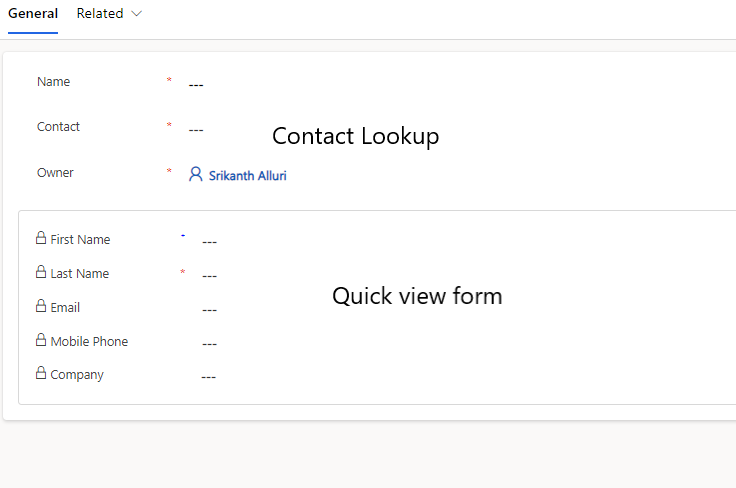
- Create a basic form configuration record in Power Pages Management application
- This is the main step – Switch to ‘Basic form metadata’ tab, Add a new Basic form metadata attribute configuration using the following values.
- Type – Attribute
- Attribute logical name – Select the contact lookup attribute what you have on the target entity
In the “Prepopulate Field” section
-
- Type – Current Portal User
- From attribute – Select the “contactid” attribute of the Contact.

- That’s it, this makes the contact value to be prepopulated on the target entity form which automatically renders the Quick view form.
- Create a page, load the basic form on the page and check the result.. you should see something like this when you load the page.


Job Done !! Hope this helps !!
 Srikanth Alluri